
If you have been asked to use Joincrs Com during a class or online lesson, you may wonder what it does and how the joining process works. Joincrs Com is connected to Classroomscreen, a web-based classroom tool that includes an interactive Poll feature.
According to Classroomscreen’s official documentation, students can use it to participate remotely in a Poll created by a teacher. The teacher enables remote voting and provides a code that students enter on the joining page. Students can also join by scanning the QR code displayed with the Poll.
What Is Joincrs Com?
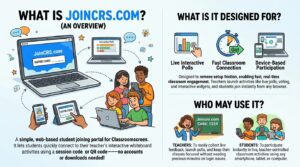
An Overview of It
Joincrs Com refers to the joining service associated with Classroomscreen’s remote Poll feature. Classroomscreen’s official Terms & Conditions define its web-based applications as including both classroomscreen.com and joincrs.com.
The service is primarily designed to help participants connect to an active remote Poll. Instead of requiring students to create their own Classroomscreen workspace, they can use the joining process provided by their teacher.
The current Join Classroomscreen interface centers on entering a session code and proceeding to the activity.
What Is Joincrs Com Designed For?
The documented purpose of Joincrs Com is remote participation in Classroomscreen Polls.
A teacher can create a Poll, choose a question format, and enable remote voting. Once remote voting is active, Classroomscreen displays instructions that tell students how to access the question. Students can then visit Joincrs Com and enter the displayed code.
Classroomscreen currently documents three Poll formats: multiple choice, smileys, and true/false. This allows teachers to collect different types of quick responses during a lesson.
Who May Use Joincrs Com?
Joincrs Com is mainly relevant to participants who have been invited to a Classroomscreen remote Poll. In a typical classroom situation, the teacher controls the Poll while students use their own devices to submit responses.
Classroomscreen also documents remote Poll use for distance learning, where students can connect to a teacher’s remote voting session through Joincrs Com.
This distinction is important: the teacher generally manages the Poll through Classroomscreen, while students use the joining process to participate.
How Does Joincrs Com Work?

Understanding the Joincrs Com
The process begins with the teacher creating a Poll in Classroomscreen. The teacher then enables the remote voting option through the Poll settings.
When remote voting is enabled, Classroomscreen displays a short instruction for students along with a code. Students visit Joincrs Com and enter that code to access the active Poll. A QR code can also be displayed as an alternative way to connect.
The basic process is:
- A teacher creates a Poll in Classroomscreen.
- Remote voting is enabled.
- A joining code is displayed.
- Students open Joincrs Com.
- Students enter the displayed code.
- Students respond to the Poll.
- The teacher can view the collected responses.
How Users Interact With the Platform
The participant experience is focused on joining and responding rather than browsing a large collection of content. The official Join Classroomscreen page provides a code-entry field, while the Poll documentation explains that students use the displayed code to access the question.
Once participants are connected, the available response options depend on the Poll created by the teacher. Classroomscreen supports multiple-choice, smiley, and true/false question types.
What You Need to Get Started
Students generally need a device with internet access, a web browser, and the current joining code supplied by the teacher. A QR code may also be available. When remote voting is enabled, Classroomscreen can display a QR code that students can scan to reach the Poll.
A separate student account is not described as a requirement for simply responding to a remote Poll. Classroomscreen’s Poll documentation focuses on joining with the provided code, while its account documentation explains that remote voting is available to Basic and Pro account users on the teacher side.
Key Features of Joincrs Com
Main Features and Functions
The primary function associated with Joincrs Com is remote access to Classroomscreen Polls.
The Poll system supports three documented question types:
- Multiple choice
- Smileys
- True/False
Classroomscreen also allows presenters to display responses using bar, pie, or doughnut charts.
These features belong to the Classroomscreen Poll system, with Joincrs Com serving as the participant access route for remote voting.
Platform Navigation and User Experience
The Joincrs Com experience is intentionally focused on joining an active session. The current joining interface asks users to enter a code, making the initial process straightforward.
Students do not need to navigate through a complicated collection of classroom tools just to submit a Poll response. The teacher supplies the necessary joining information, and the participant uses that information to connect.
Available Options and Tools
The available options depend on the Poll configured by the teacher. Classroomscreen documents multiple question formats and remote voting through student devices.
The broader Classroomscreen platform contains many other classroom widgets, but those should not automatically be described as features of Joincrs Com itself. Joincrs Com’s documented role is specifically connected to the remote Poll experience.
How to Use Joincrs Com
Getting Started With Joincrs Com
If a teacher asks you to join a Classroomscreen Poll, first look for the access code displayed on the teacher’s screen.
Open the joining page and enter the code exactly as provided. If the teacher has displayed a QR code, you may use that as an alternative method of accessing the Poll.
Exploring the Main Sections
Joincrs Com is not structured like a typical content website with numerous categories and information pages. Its participant interface is centered on joining an active Classroomscreen session.
For students, the most important part is therefore the code-entry process and the Poll that appears after successful connection.
Tips for Using the Platform
Always use the current code provided by the teacher because the joining information is associated with the active Poll session.
If the code does not work, check for typing mistakes and confirm that the teacher has enabled remote voting. Classroomscreen states that remote voting must be activated in the Poll settings.
If problems continue, the teacher should verify the Poll settings and session before assuming there is a problem with the student’s device.
Benefits and Potential Uses of Joincrs Com
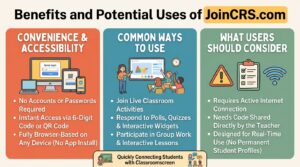
Convenience and Accessibility
One practical benefit of Joincrs Com is that students can participate in a Classroomscreen Poll from their own devices. Classroomscreen specifically supports remote voting and QR-code access for this purpose.
This can be useful when a teacher wants students to respond individually instead of having everyone interact with the teacher’s main screen.
Common Ways Users May Use the Platform
The documented uses center on classroom Polls.
Classroomscreen describes its Poll widget as useful for checking student understanding, collecting opinions, conducting quick assessments, and supporting interactive discussions.
For example, a teacher might use a multiple-choice Poll to check comprehension after explaining a topic or use a true/false question as a quick knowledge check.
What Users Should Consider Before Relying on It
Joincrs Com depends on an active Classroomscreen Poll. A participant cannot simply visit the site and expect to find a list of available classes or lessons.
The teacher needs to create the Poll and enable remote voting before students can participate through the joining process.
Therefore, It is most useful when it is being used as part of an organized Classroomscreen activity.
Is Joincrs Com Safe to Use?
Privacy and Security Considerations
Classroomscreen’s current Privacy Policy explicitly applies to websites and applications on the joincrs.com domain. The company states that it does not sell personal information and does not advertise on its websites and application.
The company also states that it uses security measures to protect personal data and uses encryption for login information and data transmission. Its more recent privacy documentation says teacher and student identifiable information is protected through encryption at rest, in transit, and through an additional encryption layer.
These statements describe the provider’s published privacy and security practices; they should not be interpreted as a guarantee that every possible online risk is eliminated.
Checking Website and Account Information
Classroomscreen’s Terms & Conditions identify Classroomscreen B.V. as the company behind the service and explicitly include joincrs.com among its web-based applications.
When using Joincrs Com, it is sensible to follow the joining instructions supplied by the teacher and make sure you are accessing the expected Classroomscreen service.
Students should not provide unrelated personal information simply because they are participating in a Poll.
Important Things to Verify Before Using It
Before joining, check that the code came from the teacher or presenter running the Classroomscreen activity.
If you have concerns about privacy, review the current Classroomscreen privacy information. The provider explains what information it may collect, how it uses that information, and how it handles account and service data.
For school environments, Joincrs Com is also important to understand whether an institution has configured its own Classroomscreen account or school subscription.
Things to Know Before Using Joincrs Com
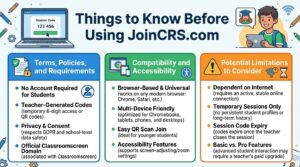
Terms, Policies, and Requirements
Classroomscreen’s Terms & Conditions state that its App includes web-based applications offered on classroomscreen.com and joincrs.com. The terms also distinguish between Basic, Pro, and School subscriptions.
For teachers, Classroomscreen currently lists remote Poll voting as part of its Basic plan as well as its Pro plan.
For students participating in a remote Poll, the essential requirement is generally the joining information supplied through the teacher’s Classroomscreen session.
Compatibility and Accessibility
Joincrs Com is accessed through a web browser rather than requiring a dedicated student application. Classroomscreen’s current joining interface provides a code-entry page for participants.
Classroomscreen also states that users are responsible for having continuous internet access and an up-to-date web browser when using the App.
The actual experience may therefore vary depending on the device, browser, internet connection, and configuration of the classroom session.
Potential Limitations to Consider
The main limitation is that Joincrs Com has a specific role. It is not documented as an independent course marketplace, general learning portal, or standalone classroom-management system.
Its documented participant function is connected to Classroomscreen’s remote Poll feature. If there is no active Poll or remote voting has not been enabled, a student may not have anything to join.
Read more : ZoomInfo Stock Explained: What Investors Should Know
Joincrs Com Pros and Cons
Potential Advantages
Based on the documented functionality, Joincrs Com provides a simple way for participants to access Classroomscreen’s remote Polls.
Students can use a code or QR code to connect, while teachers can use the Poll feature to collect responses and display the results in different chart formats.
Possible Limitations
Joincrs Com has a relatively focused purpose. It is primarily associated with participating in Classroomscreen Polls rather than providing an independent collection of educational courses or resources.
Its usefulness also depends on the teacher’s setup, including whether remote voting has been enabled and whether the correct joining information has been provided.
Important Factors to Consider
Before using Joincrs Com, consider four basic points:
- Purpose: It is used for participating in Classroomscreen remote Polls.
- Access: You generally need the code or QR option supplied by the teacher.
- Setup: The teacher must enable remote voting.
- Privacy: Review the provider’s current privacy information if you have questions about data handling.
Keeping these points in mind can make the Joincrs Com process easier to understand.
Final Thoughts on Joincrs Com
Joincrs Com is best understood as a participant access point within the Classroomscreen ecosystem. Its documented purpose is to allow students and other participants to join Classroomscreen’s remote Poll sessions using a code or QR code.
The process is straightforward: a teacher creates a Poll, enables remote voting, provides the joining information, and participants submit their responses through the It experience.
For anyone researching Joincrs Com, the most important distinction is that it should not be described as a standalone educational platform without evidence. The official Classroomscreen documentation connects it specifically with remote Poll participation. Understanding that relationship makes it easier to know what it is, how it works, and what to expect when using it.
FAQs About Joincrs Com
What Is It?
Joincrs Com is associated with Classroomscreen’s remote Poll feature, allowing participants to join an active Poll. Students can use their devices to enter the provided code and submit their responses.
How Does Joincrs Com Work?
A teacher creates a Poll in Classroomscreen and enables remote voting for participants.
Students then use the displayed code or QR code to access the Poll through Joincrs Com.
Is Joincrs Com Easy to Use?
The participant process mainly involves entering a session code on the Join Classroomscreen page. Its simple code-entry interface means participants can join without navigating a complicated dashboard.
Is Joincrs Com Safe to Use?
Classroomscreen’s published privacy information covers joincrs.com and explains its approach to personal information and security. Users should still review the current privacy information and avoid providing unnecessary personal details.
What Should I Know Before Using Joincrs Com?
Joincrs Com works with Classroomscreen’s remote Poll feature rather than functioning as a standalone learning platform. Participants generally need the current code or QR option provided by the teacher to join an active Poll.